Once the registration process is complete, the supplier will receive a notification along with the access credentials to log in to the e-Procurement portal and proceed with the subsequent qualification phase (see Figure 12).
At this point, the supplier should perform the following actions on the page:
- Enter the Username (A) and Password (B)
- Click on the Login button (C)
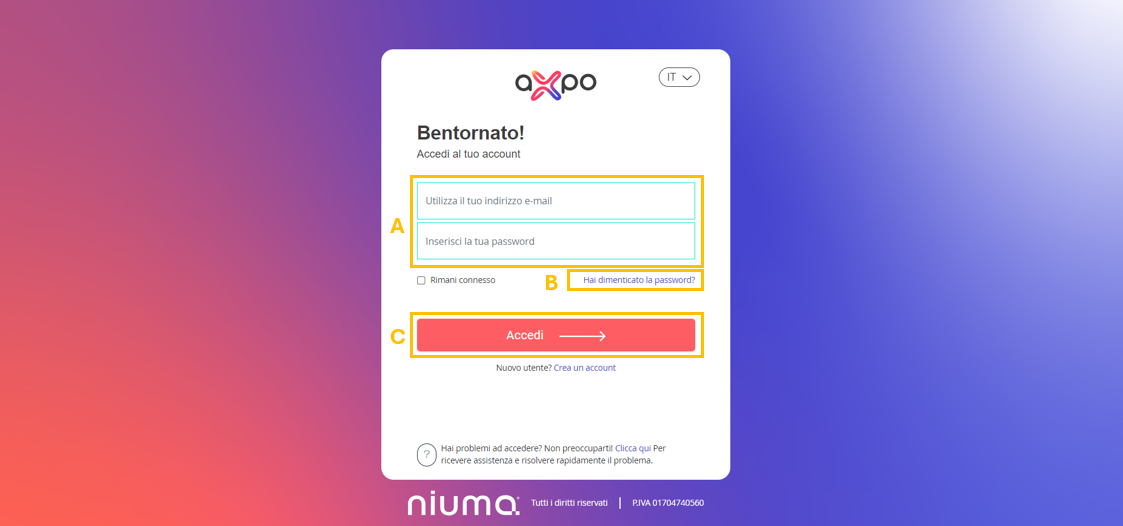
Figure 8: Axpo Portal: Login Page
Upon the first access, the system allows the supplier to change their password (See Figure 9).
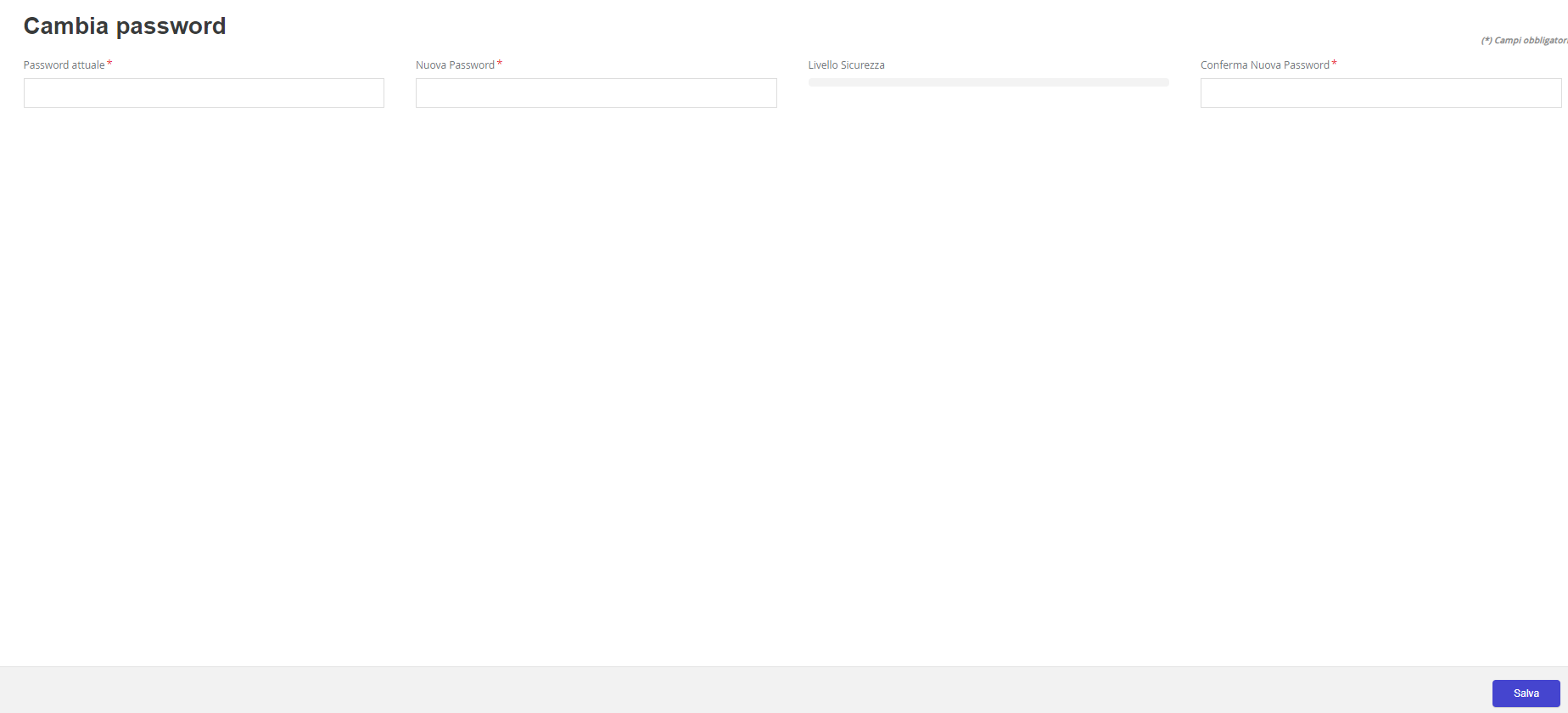
Figure 9: Axpo Portal - Change Password
This will take you to the supplier’s reserved area homepage, where you can:
- Complete the proposed questionnaires.
- Upload documents that, although not mandatory, are highly relevant for your qualification in the doValue Group's supplier register.
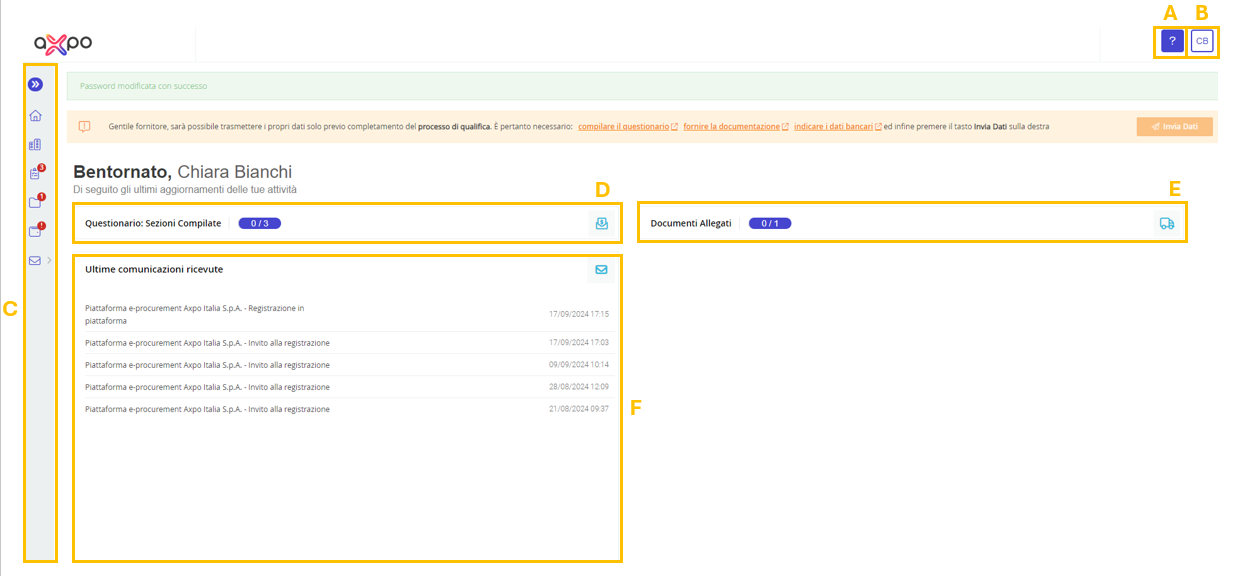
Figure 10: Axpo Portal: Supplier Homepage
Below are the main sections highlighted in the figure above (see Figure 10):
A. Technical Support: A button that allows the user to contact technical support.
B. User Area: Through this area, the user can view their Username, change their Password, and select the display language of the portal between Italian and English.
C. Main Menu: This menu allows the supplier to view and modify company data, documents, questionnaires, and received communications.
D. Questionnaires: Completed Sections: A widget to access questionnaires that need to be filled out.
E. Attached Documents: A widget through which the user can view documents that need to be uploaded and carry out the uploading process.
F. Latest Received Communications: A section containing a summary of the communications received automatically from the system.
In case of expiration of the questionnaire or qualification documents, the supplier will receive a communication requesting them to refill the questionnaire or to re-upload the documents.
Was this article helpful?
That’s Great!
Thank you for your feedback
Sorry! We couldn't be helpful
Thank you for your feedback
Feedback sent
We appreciate your effort and will try to fix the article